Category Archives: Uncategorized

Promethean

Online Resources

Drivers

Manuals

Tutorials

  • Activboard isn’t connecting. My activ icon shows that the board is not connecting to my desktop/laptop. Everything is plugged in properly and the board is plugged in. Win.ActivBoard.USB.Driver.Setup.doc
  • Answers hidden, then revealed. How can I hide the answers on slides so that students do not see them until I want to reveal them. Revealing_Answers.wmv (Right-Click, “Save Target As”), 1 minute, 20 seconds
  • Displaying ActiVote results immediately Jay Vean explains how to make the results of voting display immediately. The tutorial can be paused and played using the control panel at the bottom of the screen.
  • Exporting Results of a flipchart to excel Activboard Tutuorial Page 58 (.pdf “right-click” & “Save Target As…”)
  • Frozen Pen: Try this.
  • Linking to Documents, websites, etc… Tutorial on linking docs. Be sure enable actions on your flipchart afterwards. Right-on the chart the chart, “enable actions.”
  • Named Mode: I’m having a hard time getting Named Mode to work. ~ Tutorial Five.
  • Images are gone: Help! I’ve upgraded to ActivStudio 3 and now my images are gone. Option_A_Install_Help_3.0_Studio.pdf
  • Moving the sidebar. How can I move the side bar from the left or right side of the screen? Right-click on the side of the screen you want the sidebar to be.
  • Panel- Pen Calibration: How do I calibrate the pen for my ActivPanel? – Open the control panel (Start>Settings> Control Panel) and click on “Table Properties.” Then follow the directions for calibrating.
  • Slate doesn’t work. My slate turns on but doesn’t work with the board?
    Step 1, Step 2, USB Malfunctions when connecting to the board.
  • Driver Setup (.doc)
    Helpsheet (.doc)

KEYBOARD SHORTCUTS

F1 – Shows help.
F2 – Switches between Design Mode and Presentation Mode.
F4- Shows the Properties and Actions box.
Ctrl+A – If editing text, selects all text in the current text box.
Otherwise, selects all objects on the Flipchart.
Note: locked objects will not be included in the selection.
Ctrl+B – Makes selected text bold.
Ctrl+C – Copies selected objects to the Clipboard.
Ctrl+G – Groups selected objects together.
Ctrl+I – Makes selected text italic.
Ctrl+N – Starts a new Flipchart.
Ctrl+O – Opens My Flipcharts.
Ctrl+P- Opens the Flipchart Printing box.
Ctrl+U – Underlines selected text.
Ungroups a selected group.
Ctrl+V – Pastes selected objects.
Ctrl+X – Cuts selected objects.
Ctrl+Z – Cancels previous action.

Video

TutorialsAdobe Premiere Elements 2.0

General

Video On-Demand

Resources

Tutorials/Support

Presentations

Visualizer and Projector: Resources

Visualizers & Projectors
  • PLEASE NOTE
    • Depending on the school, the secretary or technology facilitator is responsible for contacting Avermedia to initiate equipment exchanges due to faulty equipment.
    • Locate Purchase Order from Secretary prior to contacting Avermedia Support.
    Trouble Shooting Visualizer Problems
    If the visualizer begins projecting a pixelated gray fuzz, try this or look in Serviceware.
    1. Verify all of that all of the cords for the visualizer and projector are securely in place.
    2. Make sure the lens cap is OFF
    3. Pull the power cord out of the visualizer and then reattach.
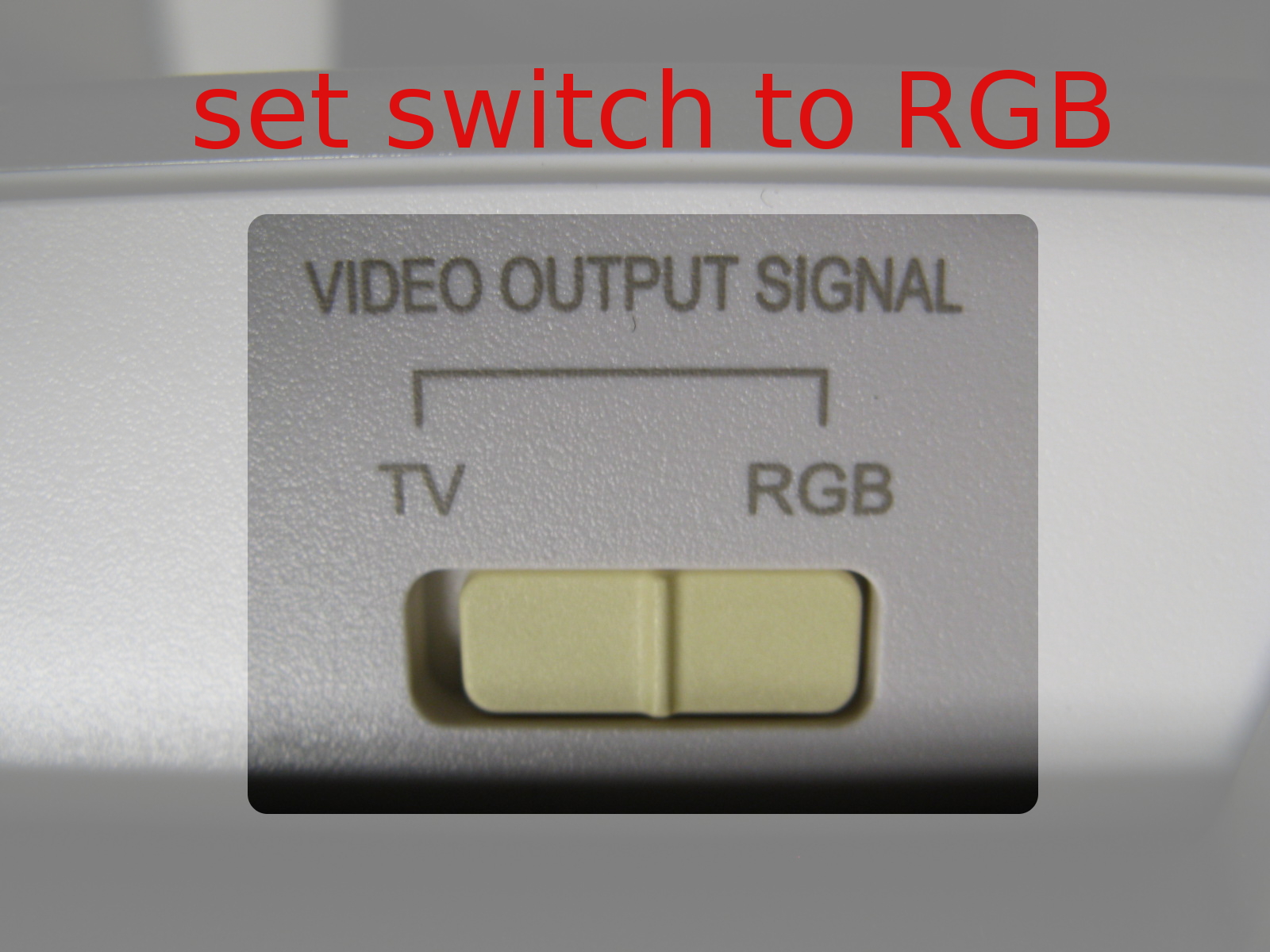
    4. rgb.jpgMake sure the switch is set to RGB
    5. Resuming Default Settings – SPC300 ONLY
      • press MENU, then default setting
      • press MENU, then ADVANCE, then EXPOSURE, then FLICKER, then try 50 or 60 to see if it makes any difference.
    6. If that doesn’t solve it, contact Avermedia’s Support team.

    Projectors

    • PowerLite 83c Multimedia Projector: 3 year limited warranty/90 lamp warranty


    FAQ’s

    Should I turn off the visualizer between uses?

    No. The visualizer doesn’t create much heat and the parts do not wear out quickly, if ever.

    Should I turn off (or hibernate) the projector between uses?

    Yes. The projector bulbs are expensive ($350 or so) and will where out more quickly with prolonged use. They also get extremely hot and this will also shorten its life span.

    How often should I blow the dust out of my projector’s filter?

    The filter should be cleaned at least monthly, if not bi-weekly. Schools tend to be very dusty. The dust clogs the projector’s filter which causes the projector to overheat. This shortens it’s life span.

    Manuals

    Visualizers: 300p.pdf, 530.pdf, spc300.pdf

    Projectors: cp-x251_um.pdf, epson_powerlite62c_ug.pdf, epson_powerlite_76c.pdf