One Place

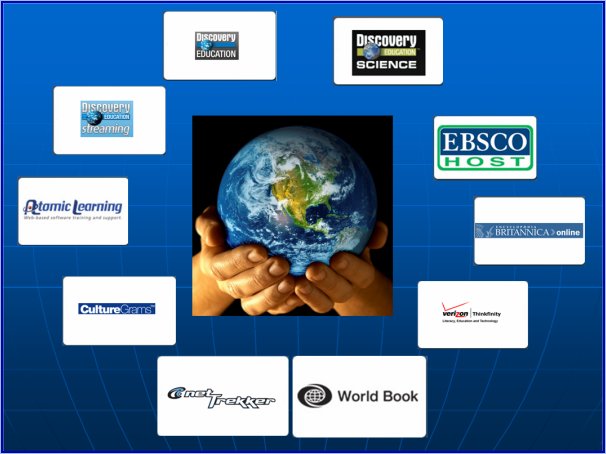
1place.jpg        1place.ppt               South Middle school was given a glimpse of One Place this afternoon. It will officially roll out soon :). Be patient. It is an incredible tool. One Place runs federated searches in district and non district Internet databases. It simultaneously searches through Discovery Science, Discovery Streaming, Discovery Education Network, Atomic Learning, Culture Grams, World Book Online, NetTrekker, Verizon/Thinkfinity (formerly Marco Polo), Britannia Online, and EBSCO. The interface is smooth and easy to navigate. It is the ideal tool for planning for instruction. You can easily come up with great teaching ideas, teaching content, examples of student work and even professional articles on teaching strategies that match your topic.

Take a moment to check out One Place. It will be worth your time. Here is the link to get started (log-in directions).
Classroom Model for Technology Integration

Debbie Tschirgi met with DoIT yesterday to share her work. Check out this site.  She is doing some amazing work. She is integrating strategies that work with technology. There are some fantastic videos here that demonstrate how to take the “Classroom Instruction that Works” strategies by Robert Marzano and integrate them with technology to make huge impacts on student achievement. http://www.esd112.org/edtech/scp/strategiesinaction.cfm

What’s that burning smell?

sanyo-plc-xe40.jpgYesterday I received an email titled, “Burning Smell??” Yikes!

Luckily it turned out to just be a dust-clogged projector. Molten plastic was not dripping down onto the floor. This particular classroom uses the projector all day. They have technology integrated into nearly everything. It is bound to get plugged up with dust sooner or later.

Most projectors have a filter located near the front of the projector next to the lens. All you need to do is slide it out, blow the dust out and slide it back in. Be sure that it is slide all of the way back in, otherwise it can cause future problems.

Here is the manual for the projectors that the Activ3 Promethean boards use. This model, the XE40 by Sanyo) actually has two filters. The directions for cleaning the filters begin on page 54 of the manual.

The filters should probably be cleaned bi-monthly… if not monthly to avoid overheating the projector.

What’s that burning smell?

sanyo-plc-xe40.jpgYesterday I received an email titled, “Burning Smell??” Yikes!

Luckily it turned out to just be a dust-clogged projector. Molten plastic was not dripping down onto the floor. This particular classroom uses the projector all day. They have technology integrated into nearly everything. It is bound to get plugged up with dust sooner or later.

Most projectors have a filter located near the front of the projector next to the lens. All you need to do is slide it out, blow the dust out and slide it back in. Be sure that it is slide all of the way back in, otherwise it can cause future problems.

Here is the manual for the projectors that the Activ3 Promethean boards use. This model, the XE40 by Sanyo) actually has two filters. The directions for cleaning the filters begin on page 54 of the manual.

The filters should probably be cleaned bi-monthly… if not monthly to avoid overheating the projector.

Visualizers

One of the basic ways to use a visualizer (document imaging camera) is like a colorful overhead projector. You can do that by hooking up a VGA from the projector to the laptop and a VGA from the projector to the visualizer, you can toggle between the two by pressing “Source Selection.” You may have to first press Fn and F8 to get the laptop to show up.

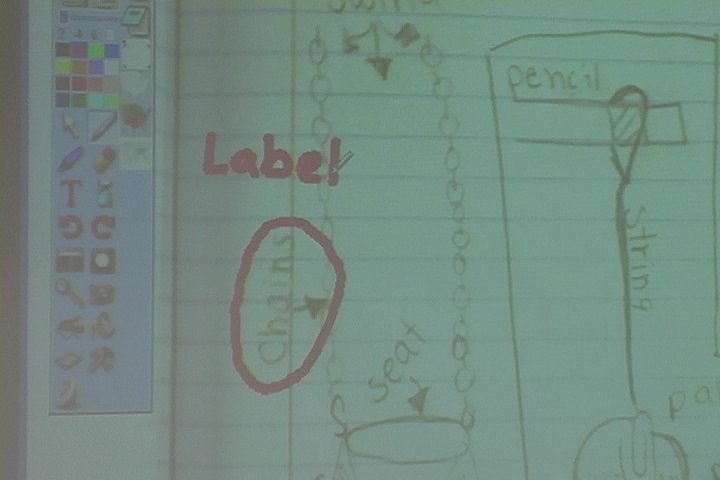
2007_09_21a1.jpg A more powerful way to use a visualizer is to install its software on your computer. The benefit is that you can annotate student journals, take snapshots of student work and more. The only (small) problem is that it slows down how quickly you see what is placed under the visualizer. You can set up the visualizer by installing the software and then connect the laptop to the projector with the VGA and the laptop to the visualizer with USB, you can open the visualizer on the laptop as a window and use it like that. Then within the computer you can toggle between websites, the visualizer, PowerPoints, etc…