Interacting with Organizers

lois_richards.gif

Providing ELL students socially supportive classroom settings have been shown to have a positive effect on student achievement. Providing support to students with diverse learning styles and needs have a positive effect on student learning. Utilizing graphic organizers has a positive effect on student learning… What kind of effects result from providing socially supportive classroom settings where students interact with graphic organizers according to their learning style (kinesthetic)? Did you say, “off the charts?” It must be so. You can see a great example of this in Lois Richard’s classroom at Kenton Elementary.

NETS: VIc – Students collect and analyze data to identify solutions and/or make informed decisions.

NETS for T: IIIb – Teachers use technology to support learner-centered strategies that address the diverse needs of students.

SIP: ET-IL

2007_09_21a1.jpgAs the Department of Instructional Technology works with principals on school improvement plans, we are noticing a definite trend in which direction teachers and administration want to move. Schools are putting projectors and visualizers into the hands of teachers and students. Visualizers (document imaging cameras) are a fantastic tool for teacher’s instruction. They align perfectly with strategies that work. Three instructional strategies that are demonstrated optimally using a visualizer are:

  • Identifying similarities and differences
  • Using nonlinguistic representations
  • Using questions, cues, and advance organizers

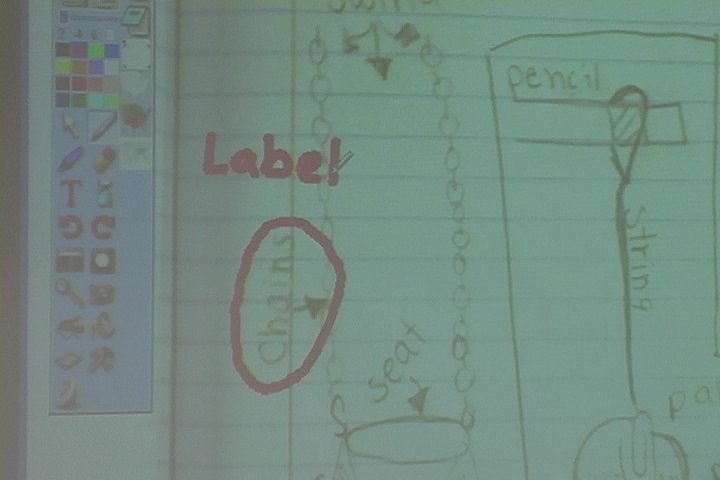
The visualizers lend themselves to all of the strategies, especially in regards to student work. Teachers can simply lay student work on the visualizer and there it is projected on a large screen for the class to see. What a great way to illustrate to students exactly what proficient and outstanding work looks like.

Here’s an example of a School Improvement Plan for Education Technology – Information Literacy (SIP: ET-IL).

Instant Feedback

Steve

Incorporating short-cycle assessments into the lesson plans are a great strategy for increasing student achievement. This strategy provides English Language Learners feedback on their progress so that they can successfully learn and apply new concepts. Steve Whitney, a science teacher at South Middle school, is using this technique with a student-response system by Qwizdom. Students are able to use remotes that are used to vote or respond to questions. Today Steve used the system to take an impromptu assessment to gage how much knowledge students retained from previous activities, discussions and lessons. Immediately upon receiving the data from students Steve was able to launch a lesson that addressed the area of weakness for the majority of students. While Qwizdom is one effective technology that enables a teachers to instantly receive feedback from students, there are others. One of the more prevalent student-response systems out in the district is by Promethean. Another technology that is being applied is the use of “Clickers” by Turning Point. Whichever technology is used however, the important thing is that it provides instant reliable feedback that enables teaching to become even more student driven.

NETS for T: IVb. Teachers use technology resources to collect and analyze data, interpret results, and communicate findings to improve instructional practice and maximize student learning.

Elluminate

Yesterday a representative from Elluminate demonstrated their product to the DoIT. He described it as a “pumped-up” version of skype. It is like Webinar software but created specifically for the field of Education. It “Add[s] real-time interaction to distance learning. Extend[s] the boundaries of the traditional classroom. Engage[s] more students in more ways.” It seems like a great alternative to webinars for professional development. We’ll be taking a closer look at it to see how robust and useful it is.

Massive Palmtop Installation

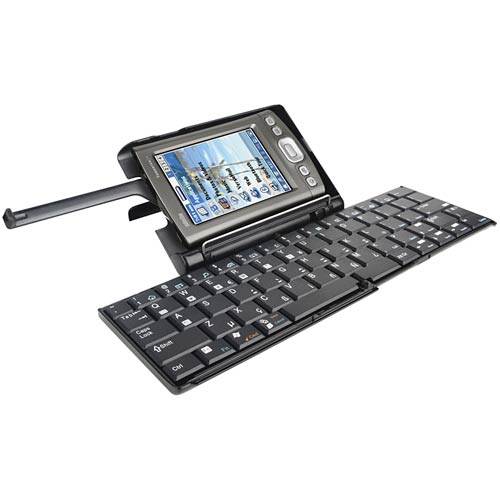
Palmtop Publishing
If you have a class set of palmtops, loading the software on each and every palmtop can be extremely time consuming. Here’s a way to save you some time. The directions assume you have a class set of thirty charged palmtops by Palm and are numbering them 1 – 30.

  1. Load the palm software on the laptop/desktop and name that palmtop 01.
  2. NOTE: Be sure to load ALL of the software essentials too, i.e. Docs to Go, ereader, etc.
  3. Be sure to synchronize palmtop #1 and test out all of the software before proceeding. 🙂
  4. Open the Palm Desktop on the laptop/desktop. Click on the drop down arrow in the upper-left of the screen. Click on “Edit Users…” Begin adding users 02- 30.
  5. Once you have 30 users, you have to add the software for palmtops 02 – 30. Rather than installing the software on each palmtop, you can just copy the files into the new folders. Close Palm Desktop.
  6. Open the 01 folder located in My Computer>C: Drive>Program Files>Palm>01. Select all and copy the files. Then go up a folder and paste the files into folder 02, 03, 04 … 30.
  7. Now that each folder has the software files of 01, you can begin synchronizing each palmtop to the laptop/desktop. Be sure to go in order with palmtops that are labeled so as not to accidentally synchronize the same number twice. Test out the software on 02 before proceeding.